How to insert your signature in Word, Google Docs and a PDF
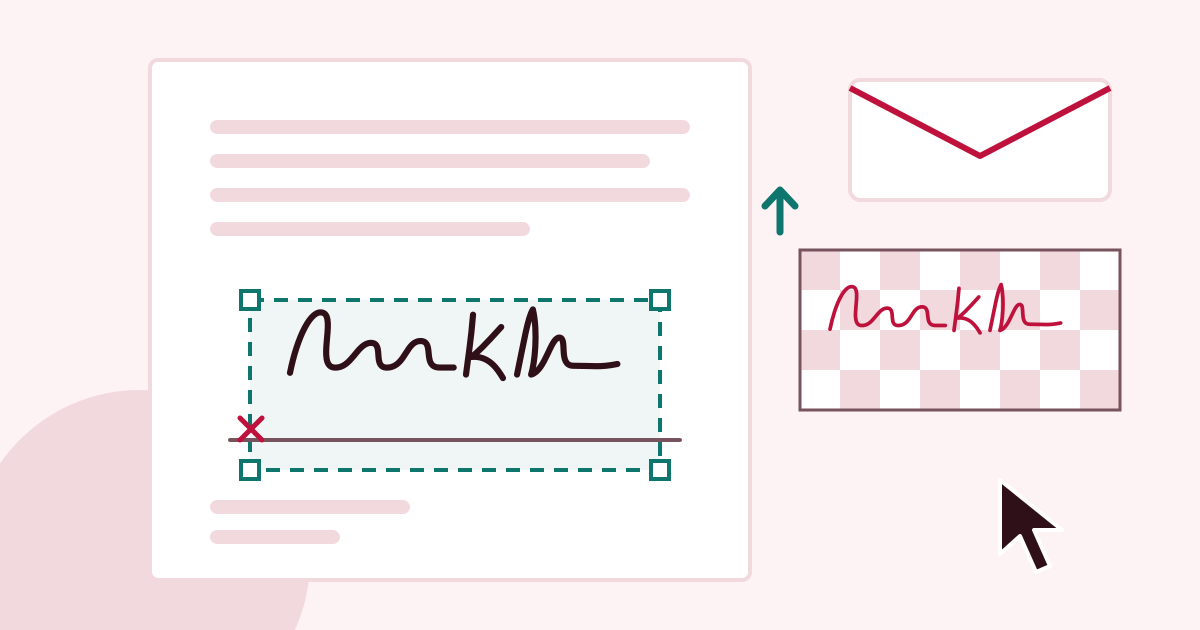
The lease arrived as a PDF, it has to be back by the end of the day, and your printer is out of toner. The fix takes five minutes if the signature file is right before you open the document: transparent, cropped to the ink and exported at the width of the line it will sit on.
I do the export first because every later problem, a white box, a giant image, a blurry scrawl, is decided at that step. Then the placement differs a little in Word, Google Docs, a PDF reader and an email signature, and each gets its own steps below.
Export at the size it will print
Measure the signature line on the page. Then make the PNG at that width in the signature generator: choose the preset closest to your line, or pick Custom and type the exact width (0.5 to 8 in, or 1 to 20 cm), and keep the output at 300 dpi. The file then carries a density tag (the PNG pHYs chunk, pixels per metre, defined in the PNG specification), and Word places it at the width you chose.
Without that tag Word assumes 96 dpi. A 600 px image then arrives 6.25 in wide (600 ÷ 96), and you spend a minute shrinking it. The same arithmetic explains why a small screen-size PNG stretched to fit the line prints blurry: there are not enough pixels behind it.
| Line on paper | PNG width at 300 dpi | Word if the tag is missing (96 dpi) |
|---|---|---|
| 1 in | 300 px | 3.12 in |
| 2 in | 600 px | 6.25 in |
| 2.5 in | 750 px | 7.81 in |
| 3.5 in | 1050 px | 10.94 in |
| 2.5 cm | 295 px | 3.07 in |
| 5 cm | 591 px | 6.16 in |
| 6.5 cm | 768 px | 8.00 in |
| 9 cm | 1063 px | 11.07 in |
Background choice matters as much as size. Use transparent for anything with ruled lines, a coloured form field or a letterhead, so the page shows through. Use white for email, covered in the last section.
Word
- Click in the document near the signature line. Choose Insert > Pictures and pick the PNG.
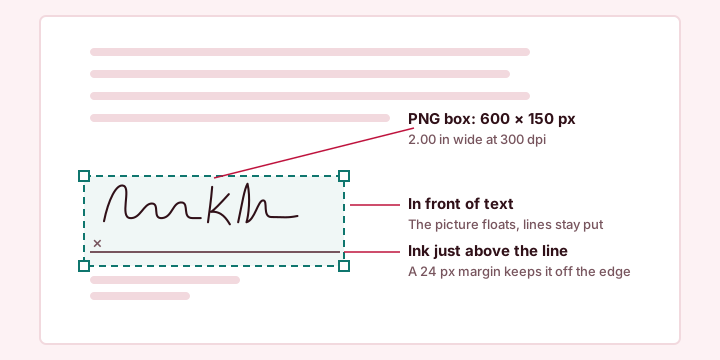
- With the picture selected, open Layout Options (or Picture Format > Wrap Text) and choose In Front of Text. A picture left "in line with text" pushes the lines around it and refuses to sit on the rule.
- Drag the picture so the ink rests just above the line. A tail that touches the line is normal and looks like a real signature.
- Check the width under Picture Format > Size. If you exported correctly it already matches your preset. If another program ignored the density tag, type the width yourself with the aspect ratio locked.
- Keep the signature for the next document: type your name and title under the picture, select both, then Insert > Quick Parts > Save Selection to Quick Part Gallery, and choose AutoText as the gallery. Next time, Insert > Quick Parts > AutoText drops it in. That is Microsoft's own method, described on its insert a signature page.
Google Docs
- Choose Insert > Image > Upload from computer and pick the PNG.
- Click the image and choose In front of text in the small toolbar that appears under it.
- Drag it to the line. Use Image options > Size & Rotation to type the width, with the aspect ratio locked. Docs does not always honour the density tag the way Word does, so I always check the width here.
- The quick alternative, Insert > Drawing, lets you scribble directly, but a mouse scribble looks worse than a stylus or finger drawing made in the tool.
A PDF you cannot edit
For a PDF, the reader you already have is the right tool. You are not rebuilding the document, only placing an image on it.
- In Adobe Acrobat Reader, open the file and choose the Fill & Sign tool.
- Choose Sign > Add signature, switch to the Image option, select the PNG and click Apply.
- Click where it belongs and drag a corner handle to scale it, keeping the proportions. Save the file under a new name so the unsigned original stays untouched.
On a Mac, Preview builds its own signature from a trackpad drawing, the camera or a nearby iPhone, and does not take a PNG file the same way. If you want your tool-made signature there, use a reader with an image option such as the one above. Most other PDF readers have an add-image or stamp tool that works the same way. Avoid uploading a contract to an online editor you do not know.
If you control the source, put the signature in Word first, then export that document to PDF. The image is then baked into the pages and cannot be dragged away by the next reader.
An email signature in Gmail or Outlook
An email signature has different limits from a print signature. Google's Gmail signature troubleshooting page sets them out: a signature can hold up to 10,000 characters, and the image counts toward that. The recommended image is 70 to 100 px high and 300 to 400 px wide, with a hard maximum of 100 px high and 1000 px wide. Images taken from Google Drive must be shared publicly or the recipients will see a broken picture.
- Choose the Email output in the tool. It fits the signature inside 400 × 100 px, never enlarges it and switches the background to white.
- Leave the background white. Black ink on a transparent PNG disappears in dark-mode mail, where the missing background turns dark. A white box is the safer choice. A mid-blue ink, such as ballpoint blue, also survives both light and dark.
- In Gmail open Settings > See all settings > General > Signature, create a signature and use the image button in its editor. In Outlook, open the signature editor from the mail settings and use its picture button. Menu names move between versions, so look for "Signatures" in your mail settings.
- Send yourself a test message and open it on a phone before using it.
The email fit in the signature generator follows a simple rule: scale to the box, never up. A drawn signature whose ink box is 1200 × 300 px becomes 400 × 100. A long one-line name at 1600 × 300 becomes 400 × 75. A compact monogram of 600 × 300 becomes 200 × 100.
When it looks wrong
| What you see | Usual cause | Fix |
|---|---|---|
| A white box covers the lines | The file was saved with a white background | Export again with a transparent background |
| The signature is far too big | The density tag was ignored, so 96 dpi was assumed | Export again with a print size or Custom width chosen |
| It is soft or blurry in print | A small PNG was stretched | Export at the printed width and 300 dpi |
| It jumps when you edit the text | The picture is in line with the text | Set wrapping to in front of text |
| Invisible in the recipient's email | Black ink on transparent, in dark mode | White background or a blue ink |
| A broken picture in the recipient's inbox | A Drive image that is not shared publicly | Share it publicly or upload it directly |
One last habit: when the document is signed and sent, delete the PNG from the downloads folder of any computer that is not yours. For what the signed file counts as in law, read are typed and drawn signatures legally binding, and for designing the signature itself see how to create your own signature.
Quick answers
How do I insert a signature into a Word document?
Choose Insert, then Pictures, and select the PNG. Set the wrapping to In Front of Text, drag it onto the line and check the width under Picture Format. A transparent PNG exported at the printed width lands at the right size.
How do I add a handwritten signature to a PDF?
Open the PDF in a reader that has an image option, such as the Fill & Sign tool in Acrobat Reader, add a signature from an image file, then place and scale it on the line. Save under a new name.
What size should a signature image be for email?
Google recommends 70 to 100 px high and 300 to 400 px wide, with a maximum of 100 px high and 1000 px wide. A 400 by 100 px image on a white background is a safe choice.
Why does my signature disappear in some email apps?
Black ink on a transparent PNG disappears when a mail app switches to dark mode. Export with a white background, or choose a mid-blue ink.
Why is my signature huge when I insert it?
The PNG probably lacks density information, so Word assumed 96 dpi and a 600 px file arrived 6.25 in wide. Export at 300 dpi with the print width chosen, or type the width in the size options.